Playable Showcase
Watch the demonstration: framework and pipelines at 0:00, interaction and bonus challenges at 0:24, targeting at 1:12.
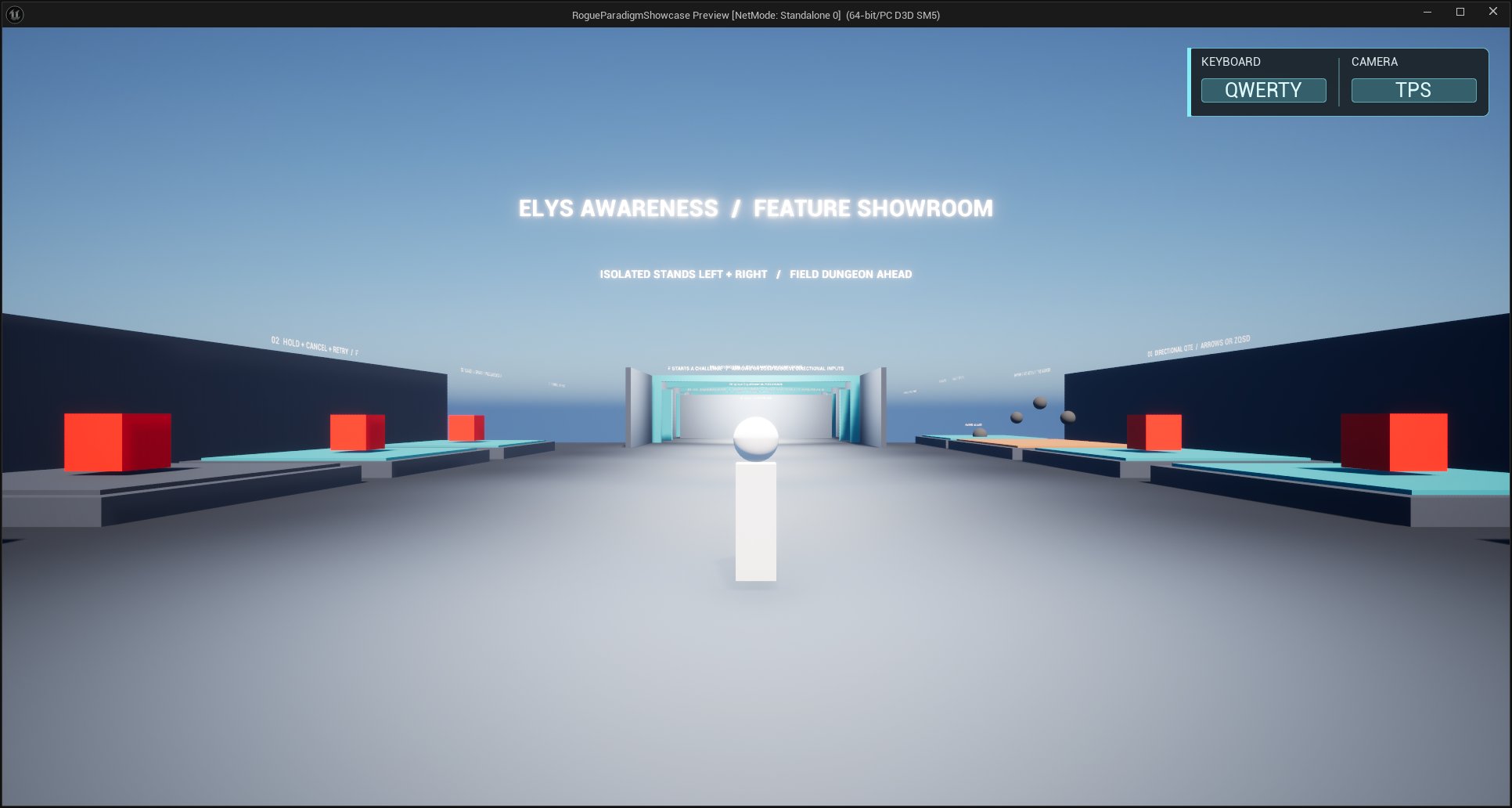
Open /ElysAwareness/Demo/Demo_ERP_Awareness_Showcase and run Play In Editor. This is the only shipped sample level. It is intentionally divided into a readable onboarding area and a compact field dungeon.
Controls
| Input | Result |
|---|---|
F | Start the focused interaction; release/cancel stops hold attempts |
| Left mouse button | Disrupt the locked sentinel in the dungeon puzzle |
T | Lock the eligible target closest to the raised aiming reference; pressing again on the same target unlocks |
C | Lock the eligible on-screen target closest to the player pawn |
Tab | Cycle eligible targets across the whole viewport and lock the selected one |
V / gamepad right shoulder | Toggle third-person / first-person camera |
E | Switch QWERTY / AZERTY movement; the HUD shows the current layout and the shortcut |
| Arrow keys or current movement directions | Directional challenge input |
When a locked target is released or destroyed, the targeting component returns to automatic soft-focus selection. The sentinel puzzle uses a compact cyan reticle and a nearby name to communicate hard lock. Line-of-sight filtering prevents targets and interactions from being acquired through the dungeon walls.
T, C, and Tab evaluate separate pipelines only when pressed. They share compatible raw sampling results, then apply their own filters and scoring with no sticky bias or additional ticking. Whole-viewport selection still respects visibility, the targetable flag, and the demo's 1,500 cm pawn range. See Targeting for the Blueprint setup.
The passive targeting ellipse and T's screen scorer use normalized reference (0.5, 0.4), above the screen midpoint to clear the third-person character. C and Tab still include the full viewport. The persistent targeting footer teaches selection only; the Disrupt instruction belongs to the dungeon.
Targeting and interaction are independent: keep a sentinel locked, look at a hold door, and hold F to open it without losing the lock. The demo uses separate inputs to make both systems observable. A game may combine them or choose a priority in its own controller; that is a game-design decision, not a runtime plugin rule.
Showroom stands
Each stand has a short in-world description behind it and isolates one concept:
- Instant interaction — descriptor-driven action text and immediate execution.
- Hold — progress fills the key badge itself and resets after release.
- Mash / pressure — repeated input fills one gauge while configurable decay pulls it back.
- Alternate inputs — Left and Right must alternate while the same continuous gauge fills.
- Timing window — a press inside the blue zone succeeds; the track turns green on success and red on failure.
- Directional QTE — ordered arrows, visible current step, and countdown below the bar.
- Rhythm — arrows travel right-to-left through a fixed hit marker and react inside the input window.
- Targeting — compare front target, nearest target, cycling, lock color, and automatic fallback.
- Instanced interaction — approach six orbs and press
Fwhile looking at one. Only that orb disappears; stay nearby to see it regrow after eight seconds. Nearby instances use interactive proxies; distant ones return to mesh instances. See Instanced Interaction for the lifecycle and re-entry exercise.
Drone gate
The large dungeon sign says LOCK TARGET, THEN PRESS, followed by a mouse pictogram with its left button highlighted and LEFT MOUSE. Disable all three sentinels to open the gate. The controller requests an action from a Blueprint component; the default response hides the drone and disables collision. WBP_ERP_DemoDroneGateHint is an editable world-space UMG example.
The gate's ObjectiveGroup lists its three participants explicitly. A separate GateResponse component opens the tagged door mesh when that group completes. Replace a drone's TargetAction with BP_ERP_DemoDestroyTarget to demonstrate destruction without changing the controller or group.
The optional two-stage relay beside the completion cache demonstrates a mechanic and view authored entirely in Blueprint. See Learn by Composition for the asset names, Named Slots, runtime view replacement API, and extension exercises.
Field dungeon
The dungeon combines the same components in a constrained space. Use it to verify:
- prompts are not visible through walls;
- the target sampler and line-of-sight filter agree;
- challenge overlays replace the object prompt and return cleanly;
- movement is suppressed during directional modal challenges;
- doors communicate their required action before the player starts it.
Blueprint organization
Demo_ERP_Awareness_PC owns awareness, targeting, interaction, and demo input routing. Its Event Graph is divided into named comment blocks. HandlePrimaryAction starts the focused interaction, while HandleTargetAction requests the locked actor's capability. HandleAimTarget, HandleClosestTarget, and HandleCycleTarget query the non-ticking ERPCommandQueries component. Demo_ERP_Interaction_Character owns movement, camera mode, and the small keyboard/camera status HUD. Puzzle and stand Blueprints contain only their local response logic.
The demo mapping context is named IMC_ERP_Awareness_Demo. It is installed after possession so the same T, C, and Tab bindings work throughout the single showcase map, including the dungeon.
Before copying a demo Blueprint
The demo assets favor clarity over project architecture. Copy the smallest relevant Blueprint, then move input mappings into your own player layer and replace demo-only text, materials, and movement code. Keep the runtime C++ components and challenge bases in the plugin; keep game-specific interaction response and styling in your project Blueprints.