Built-in Widgets
Elys Awareness includes optional reference widgets for interaction and targeting feedback. They demonstrate the presentation contracts, are easy to duplicate and restyle, and are never required by the perception or interaction runtime.
The reusable behavior contract is implemented in C++ and the shipped presentation is implemented in configured Widget Blueprints under ElysAwareness Content/UI/Widgets. The C++ classes own descriptors, focus, lock state, progress, completion, reset, and a resilient fallback layout. The Widget Blueprints own the product-facing hierarchy, spacing, brushes, and art direction, so customers can duplicate and restyle them without rebuilding the plugin.
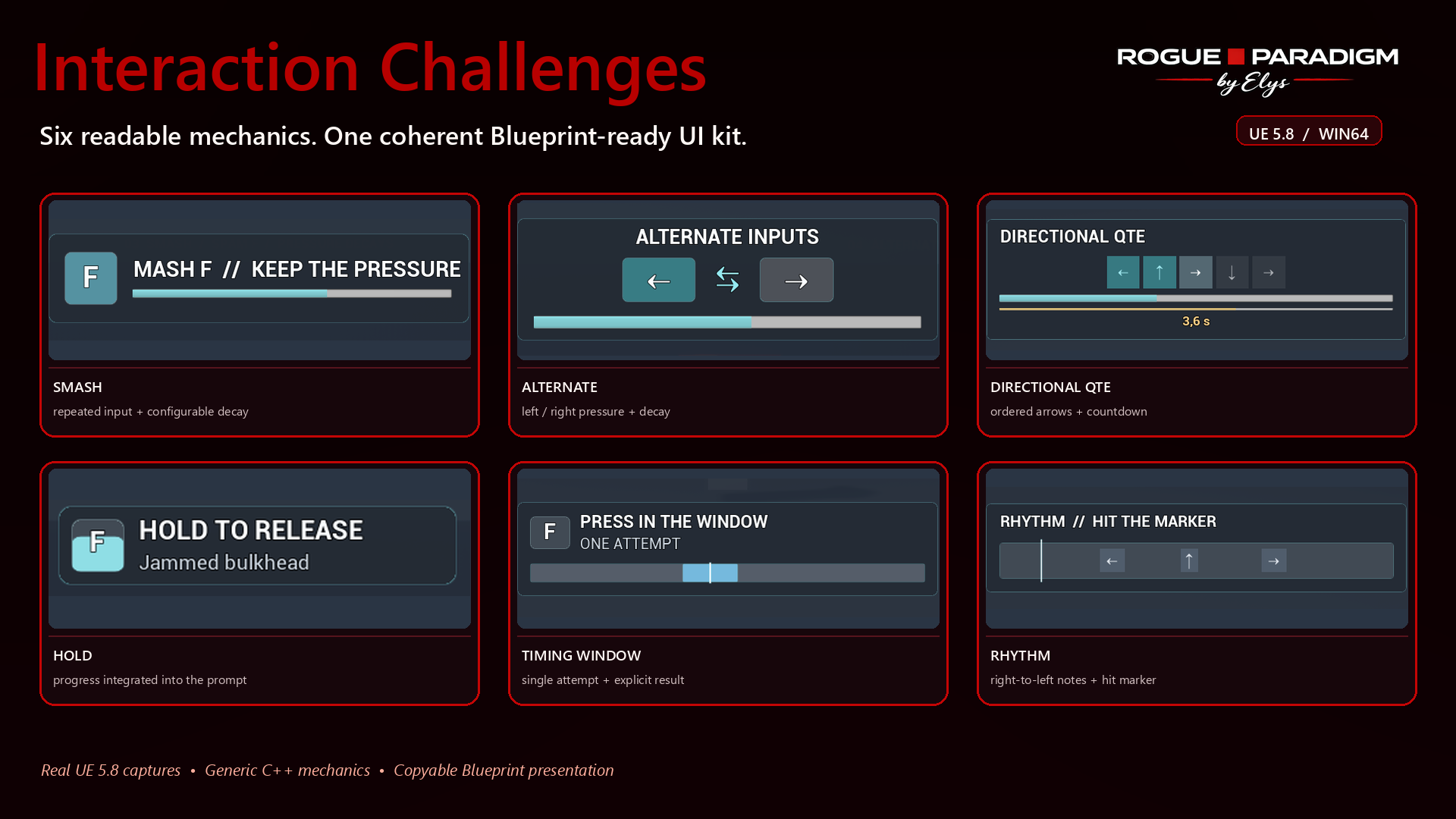
Included Widget Blueprints
Interaction
| Asset | Intended use |
|---|---|
WBP_ERP_InteractionPrompt | General single-action prompt |
WBP_ERP_ActionEntry | Reusable action row |
WBP_ERP_AmbientInteraction | Distant world-space interaction marker |
WBP_ERP_WorldInteraction | Compact world-space key, action, and target card |
WBP_ERP_HoldProgress | Hold progress inside the input badge |
WBP_ERP_MultiPressChallenge | Repeated-input pressure meter |
WBP_ERP_TimedPressChallenge | Countdown-based input challenge |
WBP_ERP_TimingChallenge | Moving-cursor timing challenge |
WBP_ERP_SequenceChallenge | Alternating-input and directional-sequence QTE |
WBP_ERP_RhythmChallenge | Right-to-left rhythm lane with a fixed hit marker |
WBP_ERP_SmashChallenge | Blueprint-configured mash/pressure presentation |
WBP_ERP_AlternatingChallenge | Blueprint-configured left/right sequence presentation |
WBP_ERP_DirectionalQTEChallenge | Blueprint-configured directional sequence presentation |
WBP_ERP_TimingWindowChallenge | Blueprint-configured single-attempt timing presentation |
Targeting
| Asset | Intended use |
|---|---|
WBP_ERP_TargetReticle | Soft-focus and lock-on corner reticle |
WBP_ERP_TargetFrame | Target name and optional icon |
WBP_ERP_TargetHealthBar | Target identity with health feedback |
Visual Language
The default presentation deliberately avoids genre-specific decoration:
- dark translucent panels;
- monochrome input badges and progress states;
- clear primary and secondary text hierarchy;
- compact object prompts and deliberately larger center-screen challenge layouts;
- restrained semantic color reserved for active, urgent, success, failure, and critical-health states.
Four editable theme references are provided under ElysAwareness Content/UI/Themes:
| Asset | Purpose |
|---|---|
DA_ERP_UITheme_NeutralMinimal | Default low-noise palette |
DA_ERP_UITheme_HighContrast | Stronger contrast for accessibility or bright scenes |
DA_ERP_UITheme_Frameless | Removes the backing surface for diegetic or low-noise prompts |
DA_ERP_UITheme_Round | Uses a circular shape language for badges and target markers |
These data assets expose palette, semantic state colors, surface mode, shape language, spacing, border, corner-radius, marker size, and motion tokens through UERP_AwarenessUITheme. Visual style and accessibility scale are independent: ScalePreset provides Compact, Standard, and Large/Couch profiles, while bReduceMotion can be routed into Blueprint animations. Assign the optional Theme reference on any interaction, challenge, or targeting widget base. If it is unset, GetResolvedTheme() returns the native neutral default. OnThemeReady is a BlueprintNativeEvent intended for Blueprint-specific brush swaps and animations.
Two ready-to-copy visual variants demonstrate that the same C++ contract can support meaningfully different presentations:
| Asset | Variant |
|---|---|
WBP_ERP_WorldInteraction_Frameless | Prompt without a backing panel |
WBP_ERP_TargetReticle_Ring | Circular target marker instead of square corners |
These are examples, not a mandatory visual style. Duplicate the closest supplied Blueprint into your project, assign one of the theme assets, and change only the presentation layer.
Automatic Challenge UI
When a challenge has WidgetClass configured, ERPInteractionComponent can create the widget for the owning local player, forward reset/progress/completion updates, and remove it when the attempt ends. This is controlled by bAutoCreateChallengeWidget and is enabled by default.
PresentationMode separates two jobs that should not share a layout:
InteractionPromptkeeps lightweight progress, such as hold-to-complete, in the focused object's input badge.ScreenOverlayhides that object prompt and presents the active skill check at the configurable center-screen anchor. Mash, Timed Press, Timing, Sequence, and Rhythm use this mode by default.- Modal screen challenges suppress pawn movement by default. This prevents WASD, ZQSD, and arrow-key challenge inputs from also moving the character; look suppression is an independent opt-in setting.
bReplaceInteractionPromptDuringChallenge controls the replacement behavior. Override WidgetClass to use a different presentation. Disable automatic creation and bind OnInteractionProgress when an existing HUD should own the entire experience.
The automatic viewport presenter applies position before anchors because UE 5.8's SetPositionInViewport resets anchors to the top-left. ChallengeWidgetAnchors, ChallengeWidgetPosition, and ChallengeWidgetAlignment therefore produce reliable centered placement instead of an accidental upper-left card.
Challenge mechanics, targeting, perception, and networking do not depend on the supplied UI.
Interaction Widgets
World Interaction Prompt
UERPBaseWorldInteractionWidget presents a compact input badge beside the primary action and target subtitle. It is designed for a world-space WidgetComponent but also works in a screen-space HUD.
Descriptor updates refresh the action, target name, input key, and optional icon. Focus changes control visibility automatically. Prompt-local progress fills the key badge from bottom to top, flashes white on completion, and resets to the idle badge state.
Optional BindWidget names: BackgroundImage, IconSizeBox, IconImage, PromptText, KeyText, KeyProgressImage, and ActionText.
Set the interactable component's WidgetClass to WBP_ERP_WorldInteraction and choose WidgetSpace = World for the bundled presentation.
Hold Progress
UERPBaseRadialHoldWidget keeps its original class name for API compatibility, but its default presentation is intentionally not radial. The input badge fills from bottom to top while the key is held and falls back when progress is released or reset.
The default widget uses only UMG primitives. Existing projects can still assign the legacy MaterialAsset, TrackTexture, and FillTexture properties when a circular or branded variant is desired.
Optional BindWidget names: TrackImage, RadialFillImage, IconImage, and PromptText.
Multi-Press Challenge
UERPBaseMultiPressChallengeWidget combines a key badge with a continuous pressure meter. The badge fills toward cyan as repeated input builds pressure, the meter falls when DecayPerSecond is non-zero, and successful completion produces a short white flash before reset. The public class name remains unchanged for API compatibility.
The generic fallback is a stable 620 x 150 center-screen card. The supplied WBP_ERP_SmashChallenge intentionally omits numeric percentage/count text: its thick pressure gauge and key-badge color communicate progress without making telemetry the visual focus. Set DecayPerSecond above zero for a mash challenge whose bar falls when the player slows down. UERPMultiPressChallenge::InputMode can use Repeated Presses, a Hold Alternative, or Automatic Completion; expose that choice through the host game's accessibility settings when repeated rapid input is not essential.
Optional BindWidget names: BackgroundImage, PromptText, CounterText, ProgressBar, and KeyBadgeBackground.
Timed Press Challenge
UERPBaseTimedPressChallengeWidget displays a key badge, a short instruction, and a countdown bar. The default normal state uses amber to communicate limited time; the bar changes to the urgent color below UrgentThreshold.
Optional BindWidget names: BackgroundImage, KeyText, PromptText, and CountdownBar.
Timing Challenge
UERPBaseTimingChallengeWidget displays a 760 x 168 center-screen challenge card with a large moving cursor, blue target window, 24 px action label, key badge, optional stage text, and a result label. The target and cursor turn green on success and red on failure before the interaction resolves. SetChallengeContext gives Blueprint widgets the active runtime challenge so they can read stage-specific state instead of overloading the progress value.
UERPTimingChallenge supports TargetSequence and SpeedIncreasePerHit for multi-stage alignment challenges. Configure TargetCenter and TargetHalfWidth for a single check, or provide a sequence of normalized target centers for a short skill challenge. The sample Blueprint BP_ERP_DemoSignalCalibrationChallenge and widget WBP_ERP_DemoSignalCalibration demonstrate a three-stage, copyable implementation without putting sample-specific presentation into C++.
The widget positions both the target zone and cursor from the track's actual rendered geometry. A Blueprint may therefore stretch the track without having to duplicate the C++ movement math.
Optional BindWidget names: TrackSizeBox, TrackImage, TargetZoneBox, TargetZoneImage, CursorBox, CursorImage, PromptText, StageText, and ResultText.
Alternating Pressure Challenge
UERPBaseAlternatingPressChallengeWidget displays two large arrow-only badges and one continuous gauge. The currently expected side is highlighted. It is the native base for the supplied WBP_ERP_AlternatingChallenge, whose presentation can be copied and reskinned in Blueprint.
UERPAlternatingPressChallenge owns the mechanic. Configure RequiredInputs for challenge length and DecayPerSecond for how quickly the gauge falls; neither value is hard-coded into the widget.
Optional BindWidget names: PromptText, LeftInputBackground, RightInputBackground, and ProgressBar.
Sequence Challenge
UERPBaseSequenceChallengeWidget displays a centered directional sequence card. Each large step has a completed, current, or future state, and the progress bar shows the whole sequence. When TimeLimit is enabled, a numeric countdown and a separate thin time bar make the remaining deadline unambiguous. UERPSequenceChallenge validates the actual UInputAction received rather than treating every press as correct.
Directional QTEs use WBP_ERP_DirectionalQTEChallenge, where ordered step cells are appropriate. The supplied StepLabels use arrows only (←, ↑, →, ↓) so the UI stays correct with AZERTY, QWERTY, gamepad, or custom bindings. The Widget Blueprint remains presentation-only and can be duplicated without changing the challenge logic.
Optional BindWidget names: PromptText, CountdownText, StepsBox, CountdownBar, and ProgressBar.
Rhythm Challenge
UERPRhythmChallenge and UERPBaseRhythmChallengeWidget provide a deliberately small rhythm mechanic: labelled notes travel from right to left toward a fixed hit marker, change emphasis inside the hit window, and fail on a missed beat or wrong input when configured to do so. This is suitable for short interaction skill checks, not a full music-game framework.
Configure BeatActions, BeatInterval, ApproachDuration, and HitWindow. Route each referenced Enhanced Input action through StartInteractionAttempt, exactly as for a sequence challenge. BeatLabels controls the Blueprint-facing arrows or keyboard labels.
Both sequence and rhythm challenges publish the inherited OnStepChanged(CurrentStepIndex, TotalSteps) event. This keeps Blueprint integration identical even though one challenge is input-order driven and the other is timeline driven.
Optional BindWidget names: PromptText, ResultText, and LaneOverlay.
Scope of the Core Challenges
The built-in set deliberately stays small: hold progress, mash, alternating pressure, directional sequence, timing window, and a compact rhythm lane. Hold is treated as an interaction affordance rather than a full mini-game. Timed Press remains available for compatibility and genuine reaction deadlines, but it is not used as filler in the showcase.
A full lock-picking board, fishing system, hacking grid, or other multi-rule activity should be packaged as a separate mini-game/add-on. Such an add-on can integrate manually in a few steps by subclassing UERPInteractionChallenge, assigning its own Widget Blueprint, and completing through the existing progress/completion delegates. It therefore remains usable without making either plugin depend on the other.
Targeting Widgets
Target Reticle
UERPBaseTargetReticleWidget uses eight simple UMG strokes to draw four open corners around the target. This stays readable without placing a solid icon over the object.
Call SetTargetLocked(true) on the generic targeting contract, or the compatibility alias SetLockedOn(true) on this reticle. OnTargetLockChanged, OnLockStateChanged, and OnLockStateChangedEvent are available for custom Blueprint animation. The supplied targeting feedback component forwards hard-lock transitions automatically.
The legacy ReticleImage and ReticleBrush remain available for compatible subclasses, while the default C++ layout uses CornerImages and CornerStroke.
Target Frame
UERPBaseTargetFrameWidget presents the descriptor's name and optional icon in a compact neutral panel. Its bubble uses FocusedFrameColor for soft focus and switches to the configurable red LockedFrameColor during hard lock. HostileTag and FriendlyTag can still select separate name colors independently.
Optional BindWidget names: BackgroundImage, IconSizeBox, IconImage, and NameText.
Target Health Bar
UERPBaseTargetHealthBarWidget extends the target frame with SetHealthPercent and GetHealthPercent. The bar remains neutral above LowHealthThreshold and uses HealthLowColor only for critical health, avoiding a permanent red-to-green gradient.
Optional additional BindWidget name: HealthBar.
Custom Blueprint Layouts
- Create a Widget Blueprint.
- Set its parent to the matching Elys Awareness C++ widget class.
- Add only the optional BindWidget elements your design needs, using the exact names documented above.
- Configure style properties in Class Defaults.
- Assign the new Blueprint to the relevant interaction, challenge, targeting, or widget component.
Automatically created screen-overlay challenge UI defaults to a center-screen anchor. ChallengeWidgetAnchors, ChallengeWidgetPosition, and ChallengeWidgetAlignment on ERPInteractionComponent are Blueprint-editable so projects can move it without subclassing the runtime component.
The C++ class continues to handle descriptors, progress, focus, lock state, completion, and reset behavior. The Blueprint controls presentation.
Runtime Examples
Open /ElysAwareness/Demo/Demo_ERP_Awareness_Showcase to inspect the widgets in real interactions. The stands introduce individual mechanics, while the dungeon verifies prompt visibility, modal challenge placement, targeting, and interaction flow in context.
See the Widget Guide for event-binding and replacement patterns.
C++ Class Summary
| Class | Use case |
|---|---|
UERPInteractionWidgetBase | Abstract interaction presentation contract |
UERPChallengeWidgetBase | Abstract challenge feedback contract |
UERPBaseWorldInteractionWidget | World or HUD interaction prompt |
UERPBaseRadialHoldWidget | Hold progress input badge |
UERPBaseMultiPressChallengeWidget | Repeated-input challenge |
UERPBaseTimedPressChallengeWidget | Countdown input challenge |
UERPBaseTimingChallengeWidget | Timing-window challenge |
UERPBaseAlternatingPressChallengeWidget | Continuous alternating-input pressure gauge |
UERPBaseSequenceChallengeWidget | Ordered directional-sequence challenge |
UERPBaseRhythmChallengeWidget | Right-to-left rhythm lane and hit marker |
UERPBaseTargetReticleWidget | Focus and lock-on reticle |
UERPBaseTargetFrameWidget | Target identity panel |
UERPBaseTargetHealthBarWidget | Target identity and health presentation |