Interaction Guide
Complete guide to implementing proximity-based interactions using ElysAwareness.
Overview
The interaction system builds on top of Perception via the UERPDomainComponent base class to provide eligibility validation, state management, and multiplayer-safe execution.
Architecture:
- Perception: Selects the best candidate locally (client-side detection)
- Domain (Interaction):
UERPInteractionComponentextendsUERPDomainComponent, validates eligibility usingIERPInteractableand optional rules - Presentation:
UERPInteractableComponenton the candidate actor manages focus feedback (outline + widget) automatically. Alternatively, listen to domain events to drive your own HUD.
ERPInteractionComponent
ERPInteractionComponent extends UERPDomainComponent and provides complete interaction state management.
What it does:
- Inherits automatic channel binding and candidate tracking from
UERPDomainComponent - Overrides
IsCandidateEligibleto checkIERPInteractable+CanBeInteractedWith+ rules - Maintains a
FERPInteractionDescriptor(by value) with all available actions for the current candidate - Handles
StartInteractionAttempt(UInputAction*)/StopInteractionAttempt(UInputAction*)— routes input to the correct action (instant, hold, multi-press, wheel) - Manages the challenge lifecycle per attempt (
DuplicateObjectper attempt, delegate routing) - Handles the wheel flow: fires
OnWheelRequested, receivesSubmitWheelSelection/CancelWheelSelectionfrom the widget - Handles networking: Server RPC with
ActionIndex, client result callbacks - Emits events:
OnDomainCandidateChanged,OnDescriptorChanged,OnInteractionExecuted,OnInteractionFailed,OnInteractionProgress,OnWheelRequested,OnWheelDismissed
Multiplayer Support
The interaction component routes requests through its owning replicated PlayerController or Pawn:
- Standalone: Executes interaction directly
- Client: Requests an instant action, or starts a numbered challenge attempt and forwards input transitions
- Server: Reads its own live descriptor, validates the action, range, configured channel filters, eligibility, rules and cooldowns
- Challenges: A separate server instance owns the mechanic, elapsed time and final outcome. The local instance predicts presentation; its completion cannot execute gameplay
- Server → Client: Notifies via
Client_OnInteractionSuccess/Client_OnInteractionFailed
ActionIndex is resolved client-side and checked against the server descriptor. Challenge inputs use asset-path identifiers matched against a server-built allowlist; clients cannot send arbitrary challenge objects, progress values, elapsed time or a success flag.
The component has SetIsReplicatedByDefault(true) to support Server/Client RPCs. The owner must have a valid owning connection and the target must be network-addressable. Detection, target locking and UI remain local. Your actor or gameplay system must replicate the consequences of execution, such as a door's open state. The showroom is not a complete multiplayer game template.
See server-authoritative challenges for custom Blueprint mechanics and latency considerations.
Basic Setup
1. Configure Interaction Pipeline
On your PlayerController or Pawn, add and configure ERPAwarenessComponent:
Interaction Pipeline Settings:
- Channel Id:
Interact - Default Sampling Range: 300.0 (shorter than targeting)
- Sampler:
ERPSphereOverlapSampler- Object Channel: WorldDynamic (or your interactable collision object type)
- Ignore Context Actor: check
- Filters:
ERPInteractableFilter, thenERPLineOfSightFilter(Visibility) - Scorers:
ERPDistanceScorer(normalize by range), Weight: 1.0 - ResolverPolicy:
LowestScore(default)
ERPSphereOverlapSampler performs an object overlap, not a visibility trace. Its legacy C++ property name is TraceChannel, but the editor displays Object Channel. Do not select Visibility: it is a trace channel and produces no overlap candidates. Use the separate line-of-sight filter to reject interactions behind walls.
2. Add Interaction Component
Add ERPInteractionComponent to your PlayerController or Pawn:
Configuration:
- Channel Id:
Interact(must match pipeline) - Max Interaction Distance: 500.0 (server-side validation distance)
- Rules: (optional instanced rules)
3. Set Up the Interactable Actor
Add UERPInteractableComponent to any actor you want to be interactable. This implements IERPInteractable and manages visual feedback automatically.
Component properties (configure in the Details panel):
| Property | Description |
|---|---|
DefaultDescriptor | Static descriptor (ObjectName, ObjectDescription, ObjectIcon, Actions, MultiActionMode) |
SingleActionWidgetClass | Widget shown when the descriptor has exactly one action |
MultiActionWidgetClass | Widget shown when 2+ actions in DirectKeys mode (action list) |
WheelWidgetClass | Widget shown when 2+ actions in Wheel mode (radial selector) |
AmbientWidgetClass | Always-visible world marker shown outside interaction range (optional) |
WidgetClassOverride | Overrides all of the above — always uses this class |
WidgetOffset | Offset from attachment point (e.g. (0, 0, 100) = 100 cm up) |
WidgetAnchorTag | Component tag to use as widget anchor instead of root (default: ERP_WidgetAnchor) |
bEnableCustomDepthFeedback | Enable outline on focus (default: true) |
CustomDepthStencilValue | Stencil value for the outline (default: 1) |
Blueprint — bind the interaction event:
Event BeginPlay
  -> Get Component (ERPInteractableComponent)
  -> Bind Event to OnInteracted
    -> Your gameplay logic — ActionIndex tells you which action was executed
Bind BuildDescriptor for dynamic descriptors (e.g. a door that shows "Open" or "Close"):
Event BeginPlay
  -> Get Component (ERPInteractableComponent)
  -> Bind Event to BuildDescriptor
    -> Your function (Actor* Interactor) -> returns FERPInteractionDescriptor
The system also detects actors that implement IERPInteractable directly — see the C++ section for details.
4. Handle Input
Bind your input actions to StartInteractionAttempt() and StopInteractionAttempt(), passing the UInputAction that triggered the event:
Input Action: IA_Interact (Started)
  -> InteractionComponent -> StartInteractionAttempt(IA_Interact)

Input Action: IA_Interact (Completed / Cancelled)
  -> InteractionComponent -> StopInteractionAttempt(IA_Interact)

Input Action: IA_Inspect (Started)
  -> InteractionComponent -> StartInteractionAttempt(IA_Inspect)

Input Action: IA_Inspect (Completed / Cancelled)
  -> InteractionComponent -> StopInteractionAttempt(IA_Inspect)
Passing null to StartInteractionAttempt uses the primary action (Actions[0]).
StartInteractionAttempt() inspects the descriptor and dispatches accordingly:
| Descriptor State | Behaviour |
|---|---|
| No descriptor or empty Actions array | Logs a warning and returns — nothing happens |
| TriggeredAction not found in Actions | Logs a warning and returns — check that the InputAction in your descriptor matches the one you pass to StartInteractionAttempt |
| Wheel mode (Actions.Num() > 1, Wheel) | Opens the wheel — fires OnWheelRequested(Actions) |
| Action with no Challenge | Executes immediately |
Action with UERPHoldChallenge | Starts the hold timer, fires OnInteractionProgress each tick |
Action with UERPMultiPressChallenge | Increments press count, fires OnInteractionProgress |
If pressing the interact key does nothing, check that your FERPInteractionDescriptor has at least one entry in its Actions array, and that each action has its InputAction field set (e.g. IA_ERP_Interact). An empty Actions array is the most common cause of silent interaction failures.
Wheel input flow:
// Your wheel widget opens via OnWheelRequested:
Event: OnWheelRequested (Actions)
  -> Open your wheel widget, populate from Actions

// When the player selects an action in the wheel widget:
-> InteractionComponent -> SubmitWheelSelection(SelectedInputAction)

// To cancel without selecting:
-> InteractionComponent -> CancelWheelSelection()
Visual Feedback (Optional)
Visual feedback is entirely optional. Choose the approach that fits your project:
| Approach | When to use |
|---|---|
UERPInteractableComponent | Widget anchored near the actor; outline; no PlayerController wiring needed for the visual side |
| Custom HUD from events | Fixed-position HUD widget driven from the PlayerController |
| Fully custom | Handle everything from perception events directly |
Approach 1: UERPInteractableComponent
This is the all-in-one approach for actor-side feedback. It manages:
- An ambient
UWidgetComponentvisible from a distance (whenAmbientWidgetClassis set) - An interaction
UWidgetComponentshown on focus (swaps with the ambient widget) - A custom depth outline when the actor is focused
- Automatic widget class selection based on descriptor action count and mode
How it works internally:
ERPInteractionComponent (on PlayerController)
  → detects candidate change
  → FindComponentByClass<UERPInteractableComponent> on the candidate actor
  → SetInteractionFocused(PC, true/false)       → shows/hides widget, fires OnInteractionFocused
  → UpdateInteractionDescriptor(PC, Descriptor) → updates widget class + content, fires OnDescriptorUpdated
  → UpdateInteractionProgress(PC, Action, Progress) → drives challenge widget, fires OnInteractionProgress
Widget class selection:
| Priority | Condition | Class Used |
|---|---|---|
| 1 | WidgetClassOverride is set | Always WidgetClassOverride |
| 2 | Actions.Num() > 1 + Wheel mode | WheelWidgetClass |
| 3 | Actions.Num() > 1 + DirectKeys mode | MultiActionWidgetClass |
| 4 | Otherwise | SingleActionWidgetClass |
Widget positioning:
Use WidgetOffset (FVector) for a simple offset from the actor's root:
(0, 0, 150)— 150 cm above the root component
For precise control, add a scene component to your actor Blueprint with the tag ERP_WidgetAnchor. The widget attaches to that component instead of the root.
WidgetSpace defaults to Screen — the component projects from the anchor's world position to screen.
Blueprint NativeEvents (override in a Blueprint child of UERPInteractableComponent):
| Event | When it fires | Typical use |
|---|---|---|
OnInteractionFocused(PC, bFocused) | Actor gains/loses focus | Additional visual feedback beyond outline |
OnDescriptorUpdated(PC, Descriptor) | Descriptor refreshed while focused | React to dynamic descriptor changes |
OnInteractionProgress(PC, Action, Progress) | Challenge in progress (0..1) | Drive custom progress UI outside the widget |
Overriding CanBeInteractedWith
Bind the CanInteractCheck delegate to control interactability at runtime:
Blueprint:
Event BeginPlay
  -> Get Component (ERPInteractableComponent)
  -> Bind Event to CanInteractCheck
    -> Your function (Actor* Interactor) -> returns bool
    -> e.g., Return: NOT bIsLocked
C++:
InteractableComponent->CanInteractCheck.BindUObject(this, &AYourActor::CheckCanInteract);

bool AYourActor::CheckCanInteract(AActor* Interactor)
{
    return !bIsLocked;
}
If not bound, the default is true (always interactable).
Dynamic Descriptors via BuildDescriptor
Bind BuildDescriptor to generate the descriptor at runtime:
Blueprint:
Event BeginPlay
  -> Get Component (ERPInteractableComponent)
  -> Bind Event to BuildDescriptor
    -> Your function (Actor* Interactor) -> returns FERPInteractionDescriptor
    -> Make FERPInteractionAction:
         ActionName: Branch(bIsOpen, "Close", "Open")
         InputAction: IA_Interact
    -> Make FERPInteractionDescriptor:
         ObjectName: "Door"
         Actions: [Action]
    -> Return Descriptor
C++:
InteractableComponent->BuildDescriptor.BindUObject(this, &AYourDoor::GetCurrentDescriptor);

FERPInteractionDescriptor AYourDoor::GetCurrentDescriptor(AActor* Interactor)
{
    FERPInteractionAction Action;
    Action.ActionName = bIsOpen
        ? FText::FromString(TEXT("Close"))
        : FText::FromString(TEXT("Open"));
    Action.InputAction = InteractAction;

    FERPInteractionDescriptor Desc;
    Desc.ObjectName = FText::FromString(TEXT("Door"));
    Desc.Actions.Add(Action);
    return Desc;
}
If not bound, DefaultDescriptor is used.
Approach 2: Custom HUD from Domain Events
Skip UERPInteractableComponent entirely. Listen to ERPInteractionComponent events on the player side and drive your own HUD widget:
Event: OnDescriptorChanged (Candidate, Descriptor, ChannelId)
  -> Update your HUD widget with Descriptor.ObjectName, Actions, etc.

Event: OnDomainCandidateChanged (Previous, New, ChannelId)
  -> Show/hide your widget based on IsValid(New)

Event: OnInteractionProgress (Action, Progress)
  -> Update challenge progress bar on your HUD
  // Action identifies which action's challenge is progressing

Event: OnWheelRequested (Actions)
  -> Open your wheel widget, populate with Actions

Event: OnWheelDismissed (bCancelled)
  -> Close your wheel widget
The widget can be positioned anywhere on screen, independent of the interactable actor's location.
Approach 3: Fully Custom From Perception Events
Skip both the interaction component and feedback. Listen directly to perception events:
Perception->OnChannelCandidateAcquired  // raw candidate detected
Perception->OnChannelCandidateLost      // raw candidate lost
Perception->OnChannelEvaluated          // all scored candidates
Blueprint Examples
Minimal Setup (UERPInteractableComponent)
PlayerController Components:
ERPAwarenessComponent(interaction pipeline configured)ERPInteractionComponent(listening to "Interact" channel)
Interactable Actor Components:
ERPInteractableComponentDefaultDescriptor.ObjectName: "Door"DefaultDescriptor.Actions[0].ActionName: "Open"DefaultDescriptor.Actions[0].InputAction: IA_InteractSingleActionWidgetClass: WBP_SinglePrompt (your widget Blueprint)WidgetOffset: (0, 0, 150)
Interactable Actor Event Graph:
Event BeginPlay
  -> Get Component (ERPInteractableComponent)
  -> Bind Event to OnInteracted
    -> Switch on ActionIndex
      -> 0: Toggle Door State
PlayerController Event Graph:
Input Action: IA_Interact (Started)
  -> InteractionComponent -> StartInteractionAttempt(IA_Interact)

Input Action: IA_Interact (Completed)
  -> InteractionComponent -> StopInteractionAttempt(IA_Interact)

Event: OnInteractionExecuted (InteractableActor)
  -> Your gameplay logic

Event: OnInteractionFailed (InteractableActor, Reason)
  -> Your error handling
Multi-Action Setup (DirectKeys)
Example: a chest that can be Opened (IA_Interact) or Inspected (IA_Inspect).
Interactable Actor:
ERPInteractableComponentDefaultDescriptor.MultiActionMode: DirectKeysDefaultDescriptor.Actions[0]: ActionName="Open", InputAction=IA_InteractDefaultDescriptor.Actions[1]: ActionName="Inspect", InputAction=IA_InspectMultiActionWidgetClass: WBP_MultiActionPrompt
PlayerController:
Input Action: IA_Interact (Started)
  -> InteractionComponent -> StartInteractionAttempt(IA_Interact)

Input Action: IA_Inspect (Started)
  -> InteractionComponent -> StartInteractionAttempt(IA_Inspect)
The component resolves which action matches the UInputAction* and executes it.
Wheel Setup
Example: an NPC with Talk, Trade, and Quest actions opened via one input.
Interactable Actor:
ERPInteractableComponentDefaultDescriptor.MultiActionMode: WheelDefaultDescriptor.Actions[0]: ActionName="Talk", InputAction=IA_TalkDefaultDescriptor.Actions[1]: ActionName="Trade", InputAction=IA_TradeDefaultDescriptor.Actions[2]: ActionName="Quest", InputAction=IA_QuestWheelWidgetClass: WBP_ActionWheel
PlayerController:
Input Action: IA_Interact (Started)
  -> InteractionComponent -> StartInteractionAttempt()
  // Fires OnWheelRequested(Actions) — opens your wheel widget

Event: OnWheelRequested (Actions)
  -> WheelWidget -> PopulateSlices(Actions)
  -> WheelWidget -> SetVisibility(Visible)

// Widget calls this when player confirms:
-> InteractionComponent -> SubmitWheelSelection(SelectedAction)

// Widget calls this on cancel:
-> InteractionComponent -> CancelWheelSelection()
Widget Integration
Widgets are UUserWidget subclasses of UERPInteractionWidgetBase. The component manages widget lifecycle automatically; your widget overrides events to display data.
| Actions.Num() | MultiActionMode | Widget Class Used |
|---|---|---|
| 1 | Any | SingleActionWidgetClass |
| 2+ | DirectKeys | MultiActionWidgetClass |
| 2+ | Wheel | WheelWidgetClass |
| Any | (override set) | WidgetClassOverride |
Widget base class hooks:
| Event | When fired | What to do |
|---|---|---|
OnDescriptorUpdated(Descriptor) | Descriptor changes | Update ObjectName, ObjectDescription, ObjectIcon |
OnActionsUpdated(Actions) | Action list changes | Build action rows or wheel slices |
OnActionProgress(Action, Progress) | Challenge progressing | Route to challenge sub-widget |
OnFocusChanged(bFocused) | Focus gained/lost | Show/hide animations |
Challenge sub-widgets (UERPChallengeWidgetBase) display hold rings or press counters. Create one per action row; forward progress from OnActionProgress to the matching sub-widget.
For detailed widget setup, see the Widget Guide.
C++ Example
PlayerController Setup
#include "Domains/Interaction/ERPInteractionComponent.h"

AYourPlayerController::AYourPlayerController()
{
    PerceptionComponent = CreateDefaultSubobject<UERPAwarenessComponent>(TEXT("Perception"));
    InteractionComponent = CreateDefaultSubobject<UERPInteractionComponent>(TEXT("Interaction"));
    // ChannelId defaults to "Interact"
}

void AYourPlayerController::BeginPlay()
{
    Super::BeginPlay();
    InteractionComponent->OnDescriptorChanged.AddDynamic(this, &AYourPlayerController::OnDescriptorChanged);
    InteractionComponent->OnInteractionExecuted.AddDynamic(this, &AYourPlayerController::OnInteractionExecuted);
    InteractionComponent->OnWheelRequested.AddDynamic(this, &AYourPlayerController::OnWheelRequested);
}

void AYourPlayerController::HandleInteractInputPressed()
{
    InteractionComponent->StartInteractionAttempt(IA_Interact); // UInputAction* set in header
}

void AYourPlayerController::HandleInteractInputReleased()
{
    InteractionComponent->StopInteractionAttempt(IA_Interact);
}
Interactable Actor — UERPInteractableComponent (Recommended)
#include "Domains/Interaction/ERPInteractableComponent.h"
#include "Domains/Interaction/ERPInteractionAction.h"
#include "Domains/Interaction/ERPInteractionDescriptor.h"

AYourDoor::AYourDoor()
{
    InteractableComponent = CreateDefaultSubobject<UERPInteractableComponent>(TEXT("Interactable"));
    InteractableComponent->WidgetOffset = FVector(0.f, 0.f, 150.f);
}

void AYourDoor::BeginPlay()
{
    Super::BeginPlay();
    InteractableComponent->BuildDescriptor.BindUObject(this, &AYourDoor::GetCurrentDescriptor);
    InteractableComponent->OnInteracted.AddDynamic(this, &AYourDoor::OnInteracted);
}

FERPInteractionDescriptor AYourDoor::GetCurrentDescriptor(AActor* Interactor)
{
    FERPInteractionAction Action;
    Action.ActionName = bIsOpen
        ? FText::FromString(TEXT("Close"))
        : FText::FromString(TEXT("Open"));
    Action.InputAction = InteractAction; // UInputAction* set in editor

    FERPInteractionDescriptor Desc;
    Desc.ObjectName = FText::FromString(TEXT("Wooden Door"));
    Desc.Actions.Add(Action);
    return Desc;
}

void AYourDoor::OnInteracted(AActor* InstigatorActor, int32 ActionIndex)
{
    bIsOpen = !bIsOpen;
    // Play animation, replicate state, etc.
}
Interactable Actor — Direct Interface (Advanced)
For actors that implement IERPInteractable directly without the component:
#include "Domains/Interaction/ERPInteractable.h"
#include "Domains/Interaction/ERPInteractionAction.h"

class AYourDoor : public AActor, public IERPInteractable
{
    GENERATED_BODY()

public:
    virtual bool CanBeInteractedWith_Implementation(AActor* InteractingActor) const override
    {
        return true;
    }

    virtual void GetInteractionDescriptor_Implementation(FERPInteractionDescriptor& OutDescriptor) const override
    {
        FERPInteractionAction Action;
        Action.ActionName = bIsOpen
            ? FText::FromString(TEXT("Close"))
            : FText::FromString(TEXT("Open"));
        Action.InputAction = InteractAction;

        OutDescriptor.ObjectName = FText::FromString(TEXT("Door"));
        OutDescriptor.Actions.Add(Action);
    }

    // ActionIndex is the index into Descriptor.Actions that was executed.
    // Pass INDEX_NONE (-1) or 0 for the primary action.
    virtual bool ExecuteInteraction_Implementation(AActor* InstigatorActor, int32 ActionIndex) override
    {
        bIsOpen = !bIsOpen;
        return true;
    }

protected:
    bool bIsOpen = false;
};
Actors using the direct interface don't get automatic widget and outline feedback. Drive those from PlayerController events (OnDescriptorChanged, OnDomainCandidateChanged) if needed.
Advanced Patterns
Challenge-Based Interactions
Challenges are instanced UERPInteractionChallenge subclasses set on each FERPInteractionAction. The interaction component creates a DuplicateObject per attempt so concurrent players don't share mutable state.
Available challenges:
| Class | Description | Key Properties |
|---|---|---|
UERPHoldChallenge | Hold the key for a duration | HoldDuration (seconds) |
UERPMultiPressChallenge | Press the key N times, hold, or auto-complete | RequiredPresses, PressCooldown, DecayPerSecond, InputMode, AlternativeDuration |
UERPAlternatingPressChallenge | Alternate two inputs into a pressure gauge with optional decay | LeftAction, RightAction, RequiredInputs, DecayPerSecond, PressCooldown |
UERPSequenceChallenge | Complete an ordered directional QTE | Sequence, bFailOnWrongKey, TimeLimit |
UERPTimedPressChallenge | React again before a short deadline | TimeLimit |
UERPTimingChallenge | Press inside one or more moving timing windows | TargetCenter, TargetHalfWidth, TargetSequence, SpeedIncreasePerHit |
UERPRhythmChallenge | Hit ordered inputs as notes reach a fixed marker | BeatActions, BeatInterval, ApproachDuration, HitWindow |
To configure a challenge in Blueprint — set it on the FERPInteractionAction.Challenge property in the Details panel (it's instanced/inline).
Set the challenge's WidgetClass to one of the bundled assets such as WBP_ERP_HoldProgress or WBP_ERP_SequenceChallenge. By default, ERPInteractionComponent creates it for the owning local player and forwards progress automatically. ScreenOverlay challenges replace the object prompt and use a configurable center-screen anchor; InteractionPrompt challenges keep their progress inside the prompt. Modal screen challenges also suppress pawn movement by default, so directional inputs shared with WASD, ZQSD, or arrow-key movement do not move the character. Disable bSuppressMovementInputDuringScreenChallenges only when the host game intentionally allows movement during a skill check. Camera suppression is separately available through bSuppressLookInputDuringScreenChallenges. To use your own HUD, disable bAutoCreateChallengeWidget on the component and bind OnInteractionProgress instead.
For presentation, use WBP_ERP_AlternatingChallenge with UERPAlternatingPressChallenge when Left/Right inputs should behave like a mash that fills one gauge. Use WBP_ERP_DirectionalQTEChallenge with UERPSequenceChallenge when the player must read and complete a visible ordered sequence. The supplied directional widgets intentionally show arrows only; physical bindings remain the responsibility of Enhanced Input and can still support QWERTY, AZERTY, gamepad, or accessibility remapping.
While a screen-overlay challenge is active, route every relevant Enhanced Input action through Start Interaction Attempt. The component forwards the concrete UInputAction to the challenge, which is what allows a sequence to distinguish Left from Right or Up from Down.
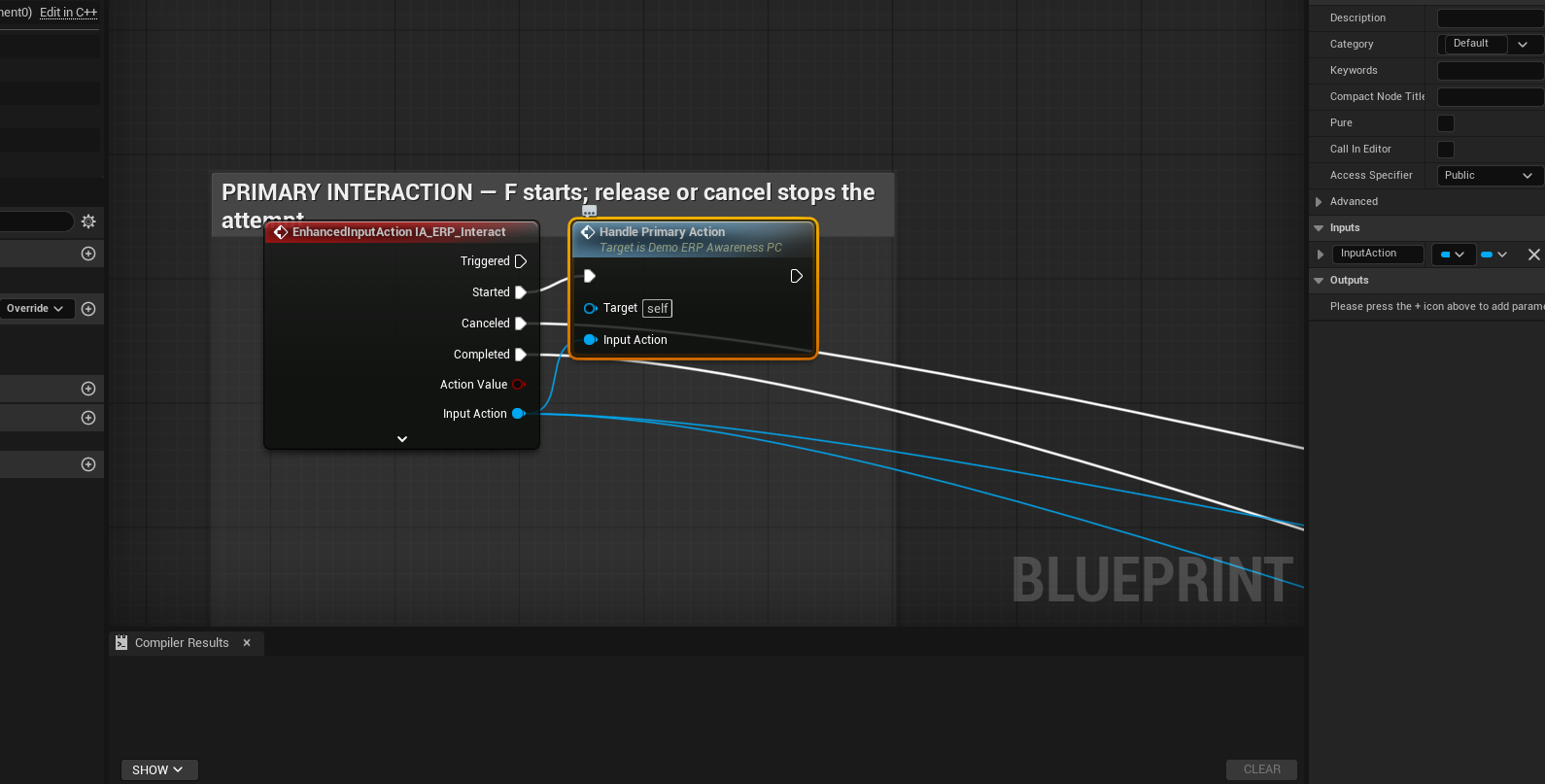
Enhanced Input example
Bind Started to Start Interaction Attempt, then bind both Canceled and Completed to Stop Interaction Attempt. Pass the triggering Input Action so descriptors with several actions remain data-driven.
// C++ — create a hold challenge on an action
FERPInteractionAction Action;
Action.ActionName = FText::FromString(TEXT("Loot"));
Action.InputAction = IA_Interact;

UERPHoldChallenge* HoldChallenge = NewObject<UERPHoldChallenge>(this);
HoldChallenge->HoldDuration = 2.0f;
Action.Challenge = HoldChallenge;

Desc.Actions.Add(Action);
Interaction Rules
Add instanced UERPInteractionRule objects to the InteractionComponent for composable validation:
UCLASS(Blueprintable, EditInlineNew)
class UMyDistanceRule : public UERPInteractionRule
{
    GENERATED_BODY()
public:
    UPROPERTY(EditAnywhere) float MaxDistance = 300.f;

    virtual bool CanInteract_Implementation(AActor* Instigator, AActor* Target, FName ChannelId) const override
    {
        return FVector::Dist(Instigator->GetActorLocation(), Target->GetActorLocation()) <= MaxDistance;
    }
};
Server-Side Validation
The Server_RequestInteraction(Actor, ActionIndex) RPC validates:
- Identity and range: valid target in the same world, authority owner and instigator, finite distance within
MaxInteractionDistance. - Perception filters: re-runs the bound channel's filters via
ValidateActorForChannel. Configure filters that can evaluate from the server's context; no rendered client viewport is required or trusted. - Eligibility: re-checks
CanBeInteractedWithand every composedUERPInteractionRule. Put inventory, permission, locked-door or game-state checks here. These hooks must be side-effect-free and available on the server. Rules receive the component owner; the interface receives the interacting pawn when the owner is a PlayerController. - Action and cooldown: checks the live descriptor's action index and the server cooldown for this interactor and target. A direct execution request is rejected when the action requires a challenge.
- Execution: only after successful validation, calls
ExecuteInteraction(InstigatorActor, ActionIndex)on the server. A challenge repeats the validity checks during the attempt and before execution.
Normal rejection returns a failure to the requesting player. An object disappearing or an action changing in flight does not disconnect the player. Component activation alone is not a gameplay permission: express eligibility through the interface, rules or available actions.
Dynamic Descriptors
Descriptors are pulled from GetInteractionDescriptor (or BuildDescriptor) when the candidate changes. If the same interactable changes its descriptor while remaining the active candidate, call ForceRefreshDescriptor():
// After changing internal state that affects the descriptor:
InteractionComponent->ForceRefreshDescriptor();
This re-pulls the descriptor and if it changed:
- Broadcasts
OnDescriptorChanged - Calls
UpdateInteractionDescriptoronUERPInteractableComponent(updates the actor-side widget)
Hold-to-Interact with Animation
Play a montage that tracks the player's hold progress, scrubbing the animation as the key is held.
Setup:
- Add a
UERPHoldChallengeto your action'sChallengeproperty - Bind
OnInteractionProgresson the interaction component
Blueprint pattern:
Event: OnInteractionProgress (Action, Progress)
  -> Branch: Progress > 0
    True:
      -> Get Montage Length (YourMontage) -> Multiply: Progress * Length -> Result = Position
      -> Montage Set Position (YourMontage, Position)
      -> Branch: Is Montage Playing?
        False: -> Montage Play (YourMontage, PlayRate = 0.0)
    False:
      -> Montage Stop (YourMontage, BlendOutTime = 0.2)

Event: OnInteractionExecuted (InteractableActor)
  -> Montage Stop (HoldMontage)
  -> Montage Play (CompletionMontage)
Key points:
- Play the montage with
PlayRate = 0.0so it doesn't advance on its own - Scrub the position using
Progress * MontageLength - When
Progressresets to 0 (key released), stop the montage - On completion, play a separate completion montage
Continuous Interactions (Grab and Push)
Let the player hold a key to grab an object and move it while held. The interaction never "completes" — it cancels when the key is released.
Setup:
- Create a Hold challenge with a very long
HoldDuration(e.g., 999 seconds) - The challenge will never complete naturally — it acts as a "held" state
Blueprint pattern (interactable actor):
Event: OnInteracted (InstigatorActor, ActionIndex)
  -> This fires when the hold challenge starts (not completes)
  -> Skip this — use the component events below instead

// On the PlayerController, bind the interaction component events:

Event: OnInteractionProgress (Action, Progress)
  -> Branch: Progress > 0 AND NOT bIsGrabbing
    True:
      -> Set bIsGrabbing = true
      -> Attach Physics Constraint (Player -> Crate)
      -> Montage Play (GrabMontage)

Event: OnInteractionProgress (Action, Progress)
  -> Branch: Progress == 0 AND bIsGrabbing
    True:
      -> Set bIsGrabbing = false
      -> Remove Physics Constraint
      -> Montage Play (ReleaseMontage)
The hold challenge's OnInputReleased resets progress to 0, which you detect to release the grab. The challenge never reaches 100% because the duration is effectively infinite.
QTE Challenges
Four compact QTE families are available for more dynamic interactions. The showcase features mash, alternating/directional sequence, timing window, and rhythm. Timed Press remains available for projects that genuinely need a short reaction deadline, but it is not used as a showcase filler challenge.
Timed Press
ERPTimedPressChallenge — the player must press the action key before a countdown expires.
Configuration:
| Property | Type | Default | Description |
|---|---|---|---|
TimeWindow | float | 3.0 | Seconds before the challenge fails |
Behavior:
- Progress counts down from 1 to 0
- If the player presses before timeout:
OnComplete(true) - If the timer expires:
OnComplete(false)
Widget: ERPBaseTimedPressChallengeWidget — shows a countdown bar and key prompt. See Built-in Widgets for style properties.
Blueprint setup:
// On the interactable actor's descriptor:
Action.Challenge = ERPTimedPressChallenge
  -> TimeWindow = 2.5

// The interaction component handles the rest automatically.
// Bind OnInteractionExecuted for success, OnInteractionFailed for timeout.
Alternating Pressure
ERPAlternatingPressChallenge — the player alternates two input actions to keep filling a gauge. Repeating one side does not advance it, and optional decay drains the gauge continuously.
| Property | Type | Default | Description |
|---|---|---|---|
LeftAction | UInputAction* | First side of the alternating pair | |
RightAction | UInputAction* | Second side of the alternating pair | |
RequiredInputs | int32 | 12 | Valid inputs required; the primary length/difficulty control |
DecayPerSecond | float | 0.0 | Input units lost per second; the pressure/difficulty control |
PressCooldown | float | 0.0 | Minimum interval between valid inputs |
bStartWithLeft | bool | true | Which side is expected first |
The two difficulty controls are deliberately explicit. For example, RequiredInputs = 20 and DecayPerSecond = 1 is long but forgiving, while RequiredInputs = 12 and DecayPerSecond = 4 is shorter but demands sustained speed.
Sequence
ERPSequenceChallenge — the player must press a finite series of input actions in order. Use it for directional QTEs; use ERPAlternatingPressChallenge when two inputs feed a decaying gauge.
Configuration:
| Property | Type | Default | Description |
|---|---|---|---|
Sequence | TArray<UInputAction*> | Ordered list of input actions to press | |
bFailOnWrongKey | bool | false | Fail immediately instead of resetting if the wrong key is pressed |
TimeLimit | float | 0.0 | Max seconds to complete (0 = no limit) |
Behavior:
- Progress = completed keys / total keys (e.g., 2/4 = 0.5)
- Each correct press advances to the next key
- Wrong key press: fails if
bFailOnWrongKeyis true, resets to the first step otherwise OnStepChanged(CurrentStepIndex, TotalSteps)reports the active zero-based step. Successful completion reportsCurrentStepIndex == TotalSteps.- When
TimeLimit > 0,OnCountdownChanged(RemainingSeconds, NormalizedRemaining)updates every tick and the supplied QTE widget shows both a numeric countdown and a thin time bar.
Blueprint setup:
// Configure the challenge:
Action.Challenge = ERPSequenceChallenge
  -> Sequence: [IA_LightAttack, IA_HeavyAttack, IA_LightAttack, IA_Dodge]
  -> bFailOnWrongKey = true
  -> TimeLimit = 5.0

// WBP_ERP_SequenceChallenge highlights the current step automatically.
// The supplied widget uses arrow-only StepLabels so remapping does not make it stale.
Use OnStepChanged when another gameplay system needs an event for each stage. Use GetCurrentKeyIndex(), GetTotalStepCount(), and GetNextExpectedAction() when a widget needs to query the current state directly. GetRemainingTime() and GetNormalizedTimeRemaining() provide polling alternatives to the countdown event.
For every action used by the sequence, bind Enhanced Input Started to Start Interaction Attempt on the same interaction component. Once the challenge is active, those concrete actions are forwarded to it even when they are not descriptor actions.
Timing
ERPTimingChallenge — the player must press when a moving cursor is inside a target zone (like a fishing minigame or forge timing bar).
For a multi-stage alignment, set RequiredHits, populate TargetSequence with normalized centers, and optionally increase SpeedIncreasePerHit. Cursor progress remains cursor position; stage state is read from the challenge context (GetCurrentHitCount, GetActiveTargetCenter) supplied to the widget by ERPInteractionComponent.
Configuration:
| Property | Type | Default | Description |
|---|---|---|---|
CursorSpeed | float | 1.0 | Cursor speed in normalized track lengths per second |
TargetCenter | float | 0.5 | Center of the target zone (0..1 along the track) |
TargetHalfWidth | float | 0.1 | Half-width of the target zone |
bFailOnMiss | bool | false | Fail immediately if the player presses outside the zone |
RequiredHits | int32 | 1 | Number of successful hits needed to complete |
Behavior:
- Cursor oscillates back and forth along a 0..1 track
- Player presses the action key when the cursor is inside [TargetCenter - HalfWidth, TargetCenter + HalfWidth]
- Hit inside zone: increments hit count; miss: fails or is ignored based on
bFailOnMiss - Progress = current hits / required hits
Widget: ERPBaseTimingChallengeWidget — shows a horizontal track with a moving cursor and a blue target zone. On completion, the active zone turns green on success or red on failure before the interaction resolves. See Built-in Widgets for style properties.
Blueprint setup:
// Configure the challenge:
Action.Challenge = ERPTimingChallenge
  -> CursorSpeed = 1.5
  -> TargetCenter = 0.6
  -> TargetHalfWidth = 0.08
  -> bFailOnMiss = true
  -> RequiredHits = 3

// Use for: fishing, lockpicking, forge hammer timing
// Call GetCursorPosition() and IsCursorInTargetZone() from your widget to drive visuals.
Rhythm
ERPRhythmChallenge provides a short right-to-left note lane for interaction skill checks. Each beat references a concrete UInputAction; the player must press that action while its time offset is inside HitWindow.
| Property | Type | Default | Description |
|---|---|---|---|
BeatActions | TArray<UInputAction*> | Ordered note inputs | |
BeatInterval | float | 0.7 | Seconds between notes |
ApproachDuration | float | 2.0 | Time a note spends travelling toward the marker |
HitWindow | float | 0.18 | Allowed early/late timing |
bFailOnWrongInput | bool | true | Fail on an unexpected action |
bFailOnMiss | bool | true | Fail when a note passes the timing window |
Assign WBP_ERP_RhythmChallenge or a duplicated Widget Blueprint to WidgetClass. Bind every action referenced by BeatActions to StartInteractionAttempt; while the challenge is active, the component forwards those concrete inputs instead of starting another interaction.
Bind OnStepChanged(CurrentStepIndex, TotalSteps) for stage-driven gameplay, audio, animation, or telemetry. The event fires for every accepted beat and for a skipped beat when bFailOnMiss is disabled. GetCurrentBeatIndex() and GetTotalBeatCount() expose the same state for polling.
Keep full mini-games separate. Lock-picking, fishing, hacking, and similar systems can integrate through a small project-side adapter or a custom UERPInteractionChallenge, without making either plugin depend on the other.
How MarkDescriptorDirty Works
When your interactable changes its data while it is already the focused candidate, the system does not detect the change automatically. You need to tell it to re-read the descriptor so the widget updates.
When to call it: whenever the interactable's state changes while the player is looking at it. Examples: a door goes from "Open" to "Locked", a cooldown expires, an inventory update changes the available actions.
Two ways to trigger it:
- From the interactable actor: call
MarkDescriptorDirty()onUERPInteractableComponent. This notifies the interaction component to re-read the descriptor. - From the player side: call
ForceRefreshDescriptor()onUERPInteractionComponentif you do not have access to the interactable component.
The built-in cooldown system calls this automatically when a cooldown starts or expires -- you do not need to call it yourself for cooldowns.
Example: a chest that changes from "Open" to "Already Looted" after interaction:
Event: OnInteracted (InstigatorActor, ActionIndex)
  -> Set bLooted = true
  -> Get Component (ERPInteractableComponent) -> MarkDescriptorDirty()
  // BuildDescriptor now returns "Already Looted" instead of "Open"
Interaction Cooldowns
Three approaches for preventing repeated interactions: built-in per-action cooldowns, state-based cooldowns, and manual gating.
Built-In Per-Action Cooldowns
The simplest approach. Set the Cooldown field directly on FERPInteractionAction:
| Field | Type | Default | Description |
|---|---|---|---|
Cooldown | float | 0.0 | Seconds before this action can be used again |
CooldownScope | EERPCooldownScope | ThisAction | Which actions are blocked during cooldown |
CooldownScope options:
- ThisAction -- only this specific action is disabled during cooldown. Other actions on the same interactable remain available.
- AllActions -- all actions on this interactable are blocked. The widget hides entirely during cooldown.
Blueprint setup:
// In your descriptor (DefaultDescriptor or BuildDescriptor):
Make FERPInteractionAction:
  ActionName: "Harvest"
  InputAction: IA_Interact
  Cooldown: 5.0
  CooldownScope: ThisAction
Querying cooldown state from the player side:
InteractionComponent -> IsActionOnCooldown(IA_Interact) -> bool
InteractionComponent -> GetActionCooldownRemaining(IA_Interact) -> float (seconds)
Cooldowns reset automatically when the player changes target (looks at a different interactable).
Pattern 1: State-Based Cooldown (Instanced Interaction)
Best for ERPInstanceProxy or any actor with a state machine. Add a cooldown state step that auto-advances back to the ready state.
StateSteps:
  [0] State: ERP.Instance.Ready
      Descriptor: Actions = [Open]
      Duration: 0  (waits for interaction)

  [1] State: ERP.Instance.Cooldown
      Descriptor: Actions = []  (empty = not interactable)
      Duration: 5.0  (auto-advance after 5 seconds)
      bLoopToFirst: true  (returns to step 0)
During the cooldown step, the actor has no actions so no prompt appears. After 5 seconds it loops back to step 0 and becomes interactable again.
Pattern 2: CanBeInteractedWith Gate
Best for regular actors with ERPInteractableComponent. Track a timer in your actor and block interactions until it expires.
Blueprint:
// Variables: CooldownEndTime (float), CooldownDuration (float, default 5.0)

Event BeginPlay
  -> Get Component (ERPInteractableComponent)
  -> Bind Event to CanInteractCheck
    -> Your Function:
       -> Return: GetGameTimeSinceCreation >= CooldownEndTime

Event: OnInteracted (InstigatorActor, ActionIndex)
  -> Set CooldownEndTime = GetGameTimeSinceCreation + CooldownDuration
  -> ForceRefreshDescriptor()  // Updates the widget immediately
  -> Your gameplay logic
Call ForceRefreshDescriptor() after starting the cooldown so the widget updates (e.g., hides the prompt or shows a "cooling down" state).
For most use cases, the built-in Cooldown field on FERPInteractionAction is the easiest approach. Use state-based or manual gating only when you need custom cooldown visuals or logic.
Troubleshooting
| Symptom | Cause | Fix |
|---|---|---|
| Nothing happens when pressing interact | Descriptor's Actions array is empty | Add at least one FERPInteractionAction with an InputAction to your descriptor |
| Nothing happens, but prompt is visible | The InputAction passed to StartInteractionAttempt doesn't match any action in the descriptor | Ensure the same UInputAction asset (e.g. IA_ERP_Interact) is used in both the descriptor's Actions and your input binding |
| No prompt appears | Awareness pipeline doesn't resolve the interactable | Check that the interactable has a collision channel matching your sampler's TraceChannel, and that it passes all pipeline filters |
| "Too far" failure in log | Server-side distance validation | Increase MaxInteractionDistance on UERPInteractionComponent, or move closer |
| "Execution failed" in log | CanBeInteractedWith returned false, or a Rule failed | Check your CanInteractCheck delegate and any Rules on the interaction component |
| Interaction works once then stops | Descriptor changes after first interaction (e.g. CanBeInteractedWith now returns false) | Verify your interactable's state doesn't inadvertently block re-interaction |
All interaction warnings are logged under the LogElysAwareness category. Filter your Output Log by this category to see detailed diagnostics.
Next Steps
Build your interaction UI with Widget Guide.
Set up targeting with Targeting Guide.
Create custom domains with Custom Domains.
Check complete API in API Reference.